





Windows 11 24H2 ISO Updates
Windows 11 24H2: The Definitive Guide to the 2024 Update and ISO Downloads
The release of Windows 11, version 24H2 (also known as the Windows 11 2024 Update) marks a significant pivot in Microsoft’s operating system strategy. Unlike previous incremental updates, 24H2 is a “base swap” update, meaning it replaces the underlying OS platform with a new version of the Windows kernel (codenamed “Germanium”). This update is heavily focused on AI integration, performance optimizations, and modernizing core legacy components of the Windows environment.
For tech enthusiasts, IT professionals, and power users, understanding how to navigate this update—and more importantly, how to secure a clean ISO for offline installation—is crucial. This article provides a comprehensive deep dive into the features, requirements, and deployment strategies for Windows 11 24H2.
What’s New in Windows 11, Version 24H2?
Microsoft has described 24H2 as a “continuous innovation” release. While many features have been trickling into the OS via “Moment” updates, 24H2 consolidates these and adds low-level system improvements that require a full OS swap. Here are the cornerstone features:
1. Copilot+ PC Integration and AI Features
While 24H2 runs on all compatible hardware, it unlocks exclusive “Copilot+ PC” experiences for devices with an NPU (Neural Processing Unit) capable of 40+ TOPS. These include:
- Recall (Preview): A controversial but powerful feature that helps you find anything you’ve seen on your PC using natural language.
- Cocreator in Paint: Real-time AI image generation based on ink strokes and text prompts.
- Live Captions: Instant translation of any audio or video content into English from over 40 languages.
- Windows Studio Effects: Enhanced background blur, eye contact, and voice focus powered by the NPU.
2. Kernel-Level Improvements and “Sudo for Windows”
One of the most exciting additions for developers is Sudo for Windows. Borrowing from the Linux world, this allows users to run elevated commands directly from an unelevated console session. Additionally, Microsoft has continued its project of rewriting critical kernel components in Rust, enhancing memory safety and performance.
3. Connectivity and File Management
- Wi-Fi 7 Support: 24H2 adds native support for Wi-Fi 7, offering multi-gigabit speeds and lower latency for compatible hardware.
- Native 7-Zip and TAR Compression: The File Explorer context menu now supports creating compressed archives in 7z and TAR formats without third-party software.
- Energy Saver: A rebranded and expanded “Battery Saver” that now works on desktop PCs to reduce energy consumption by limiting background activity.
System Requirements: The SSE4.2 Hurdle
While the basic requirements (TPM 2.0, Secure Boot, 4GB RAM) remain the same as the original Windows 11 release, 24H2 introduces a hard block on older CPUs. The OS now requires the PopCnt (Population Count) instruction, which is part of the SSE4.2 or SSE4a instruction set. This means CPUs older than Intel Nehalem (2008) or AMD Barcelona (2007) will no longer be able to boot Windows 11 24H2, even with bypass hacks that worked on previous versions.
How to Download Windows 11 24H2 ISO (Official Method)
Microsoft has made the 24H2 ISO images available on their official servers. Using the official ISO is the safest way to perform a “Clean Install,” which removes OEM bloatware and ensures maximum system stability.
Step-by-Step Official Download:
- Navigate to the Microsoft Windows 11 Download page.
- Scroll down to the “Download Windows 11 Disk Image (ISO) for x64 devices” section.
- Select “Windows 11 (multi-edition ISO for x64 devices)” from the dropdown menu.
- Click Download Now.
- Select your preferred product language (e.g., English United States).
- Click the 64-bit Download button. The link is valid for 24 hours.
The Advanced Method: Downloading 24H2 After 25H2 Releases
Once Microsoft releases the next major version (e.g., 25H2), the official download page will likely be updated to point to the newer version, making the 24H2 ISO harder to find. For enthusiasts who need 24H2 specifically for stability or hardware compatibility, the UUP Dump method is the professional choice.
Using UUP Dump to Create a Custom 24H2 ISO
UUP (Unified Update Platform) Dump fetches files directly from Microsoft’s Windows Update servers and packages them into a bootable ISO.
- Visit uupdump.net.
- Use the search bar to search for “24H2”.
- Select the latest stable build for your architecture (usually x64).
- Choose your language and the editions you want (Home, Pro, etc.).
- On the download method page, select “Download and convert to ISO”.
- Download the ZIP configuration file, extract it, and run the `uup_download_windows.cmd` script. This script will download the files from Microsoft and generate a fresh 24H2 ISO on your local machine.
Creating a Bootable USB with Rufus
Once you have your ISO (either from Microsoft or UUP Dump), use Rufus to create the installation media:
- Connect a USB drive (8GB+).
- Select your 24H2 ISO in Rufus.
- Pro Tip: Rufus allows you to check boxes to “Remove requirement for 4GB+ RAM, TPM 2.0 and Secure Boot” and “Disable Data Collection,” which is highly recommended for advanced users.
Final Thoughts
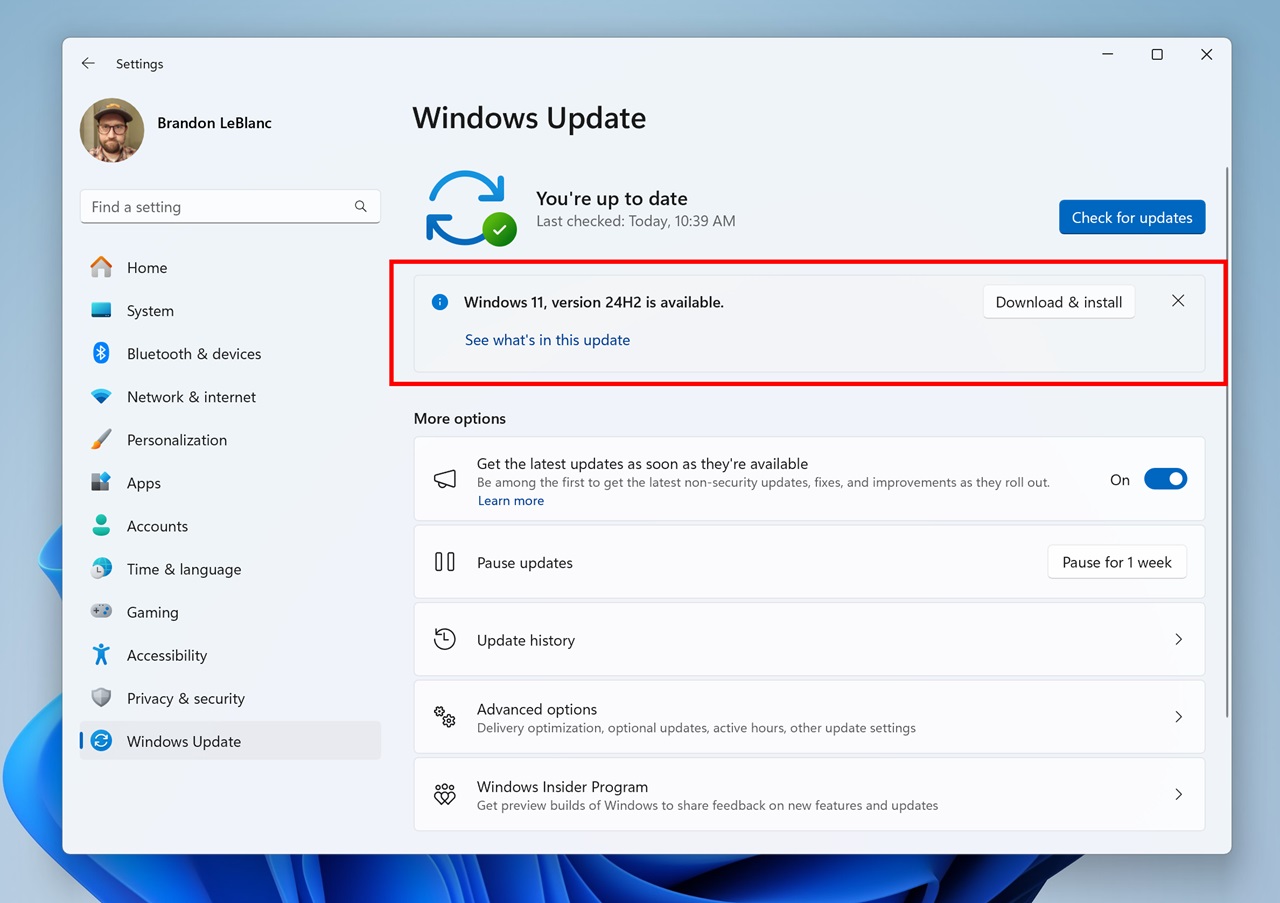
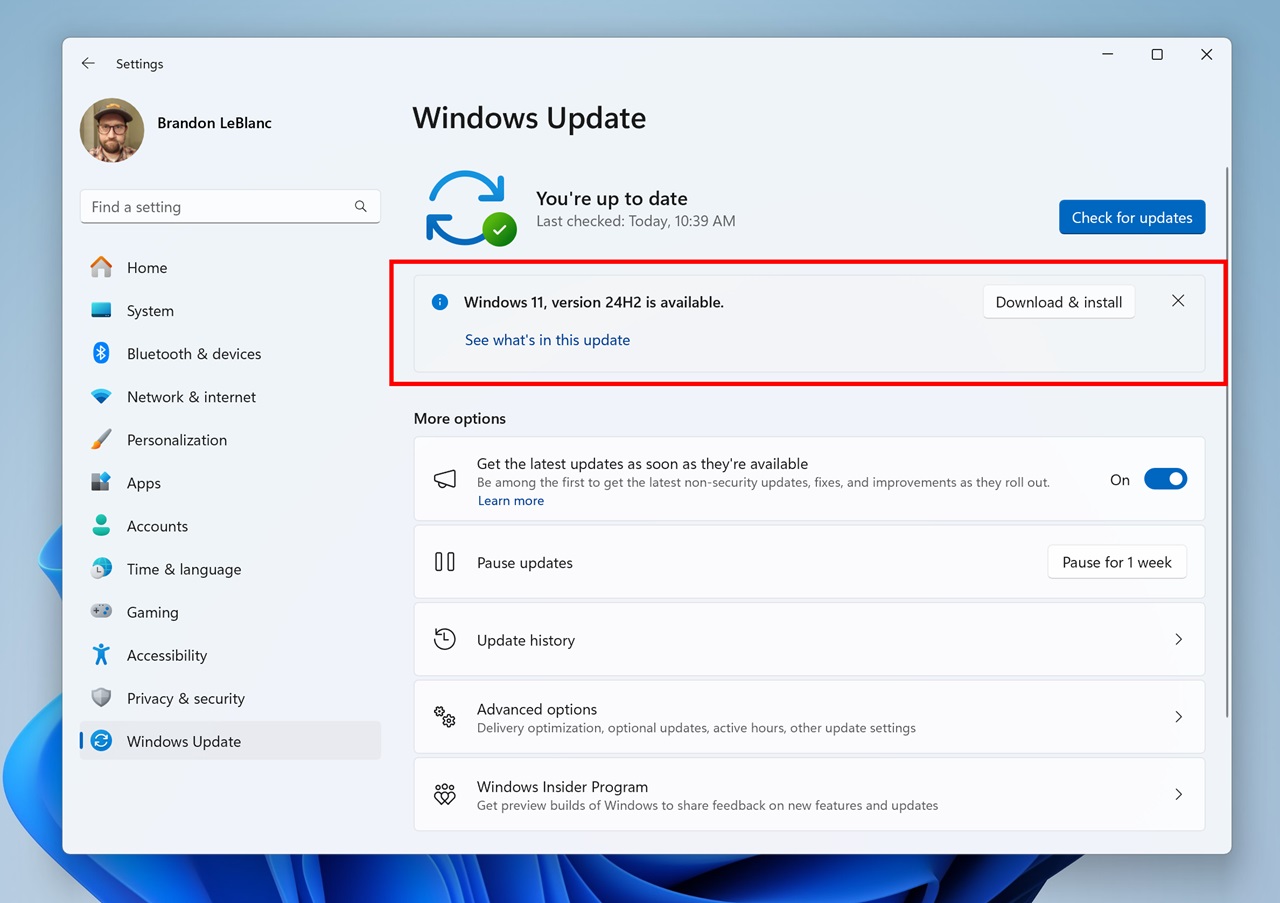
Windows 11 24H2 is more than just a yearly update; it is the foundation for the next generation of AI-driven computing. While the increased hardware requirements may leave some older machines behind, the improvements in kernel efficiency, developer tools, and connectivity make it a worthy upgrade for modern hardware. Whether you are upgrading via Windows Update or performing a clean install using the ISO methods described above, 24H2 represents the most polished version of Windows 11 to date.
Resources
- Official Microsoft Support: Inside the 2024 Update
- Windows 11 Official Download Page: Microsoft.com/software-download
- UUP Dump (Advanced ISOs): uupdump.net
- Rufus (Bootable USB Tool): rufus.ie
- Windows 11 Specifications: Minimum System Requirements